Baseline Compare
See exactly where two baselines differ.
Put any two frameworks, OS releases, mSCP sources, or your own projects side by side, then search, filter, and export the result.
What Baseline Compare Does
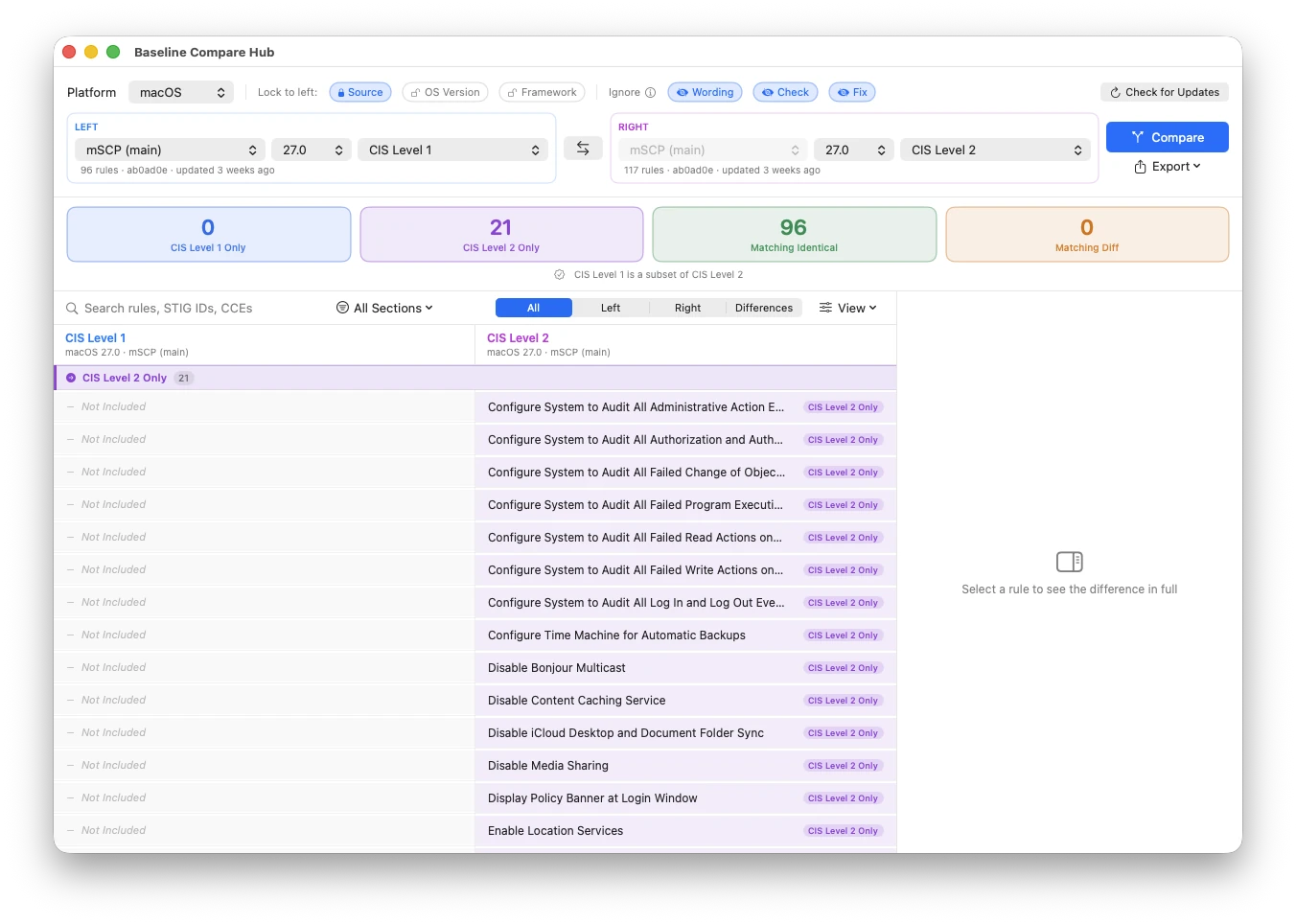
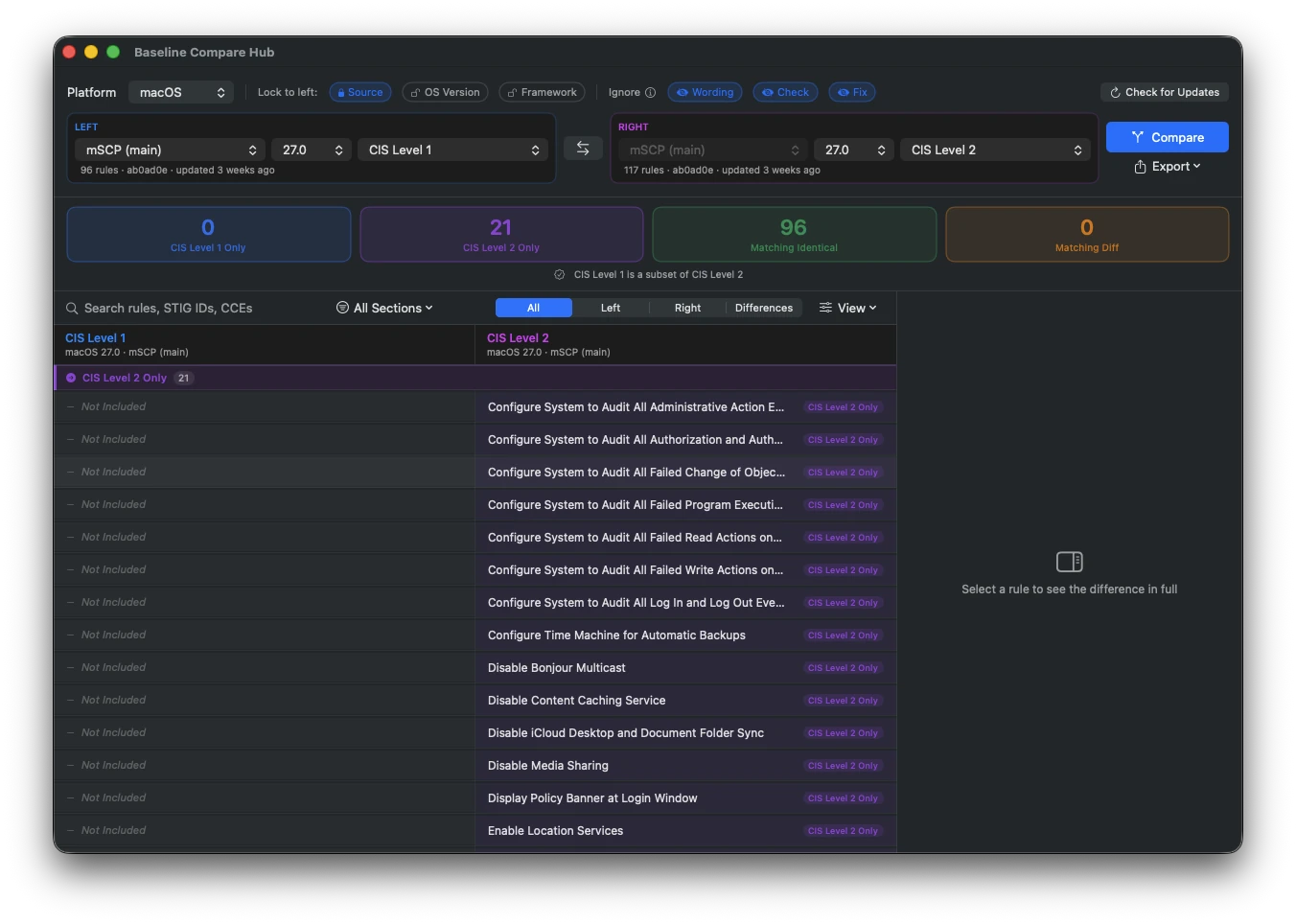
Picking a framework is usually the first real decision in a compliance project, and it's hard to make without knowing what each one actually asks for. The Baseline Compare Hub answers that directly. Choose two baselines, click Compare, and MACE lines up every rule from both and sorts it into four groups: only in the left, only in the right, in both with identical settings, and in both but configured differently.
main branch to a dev branch, or to a fork you added under Settings. Useful for previewing upcoming rule changes.Opening the Hub
Click Compare Baselines on the main menu, under Compliance Builder. The hub opens in its own window and doesn't block anything else, so you can keep a Compliance Editor open next to it while you work.
| 🪟 | The hub replaces the main menu while it's open. Close it and the main menu comes back. |
| 💾 | Your picks, lock settings, ignore settings, and view options are saved between sessions. If you had a comparison set up last time, it re-runs on its own when the window opens. |
| 🖱️ | Clicking the MACE Dock icon brings an open or minimized hub back to the front. |
Picking the Two Sides
Each side has three pickers: Source, OS Version, and Framework. The Platform picker above them is shared, so both sides always compare the same platform. It only lists platforms the left side's source actually has rules for.
Where the rules come from. The menu lists, in order:
mSCP branches: main shows as "mSCP (main)". Dev branches such as dev_27 show as "mSCP (dev_27)". Forks you added under Settings ▸ Additional Sources show as "owner/repo (branch)". Any branch with the mSCP 2.0 layout is discovered automatically.
Recent projects for the current platform, listed as "Project: name". Projects whose folder has moved are left out.
Open Project…, which lets you choose any project folder. Pick the folder that contains the .mace file.
The OS releases that source ships, newest first. A version that only exists on a dev branch, such as a beta macOS release, appears only when that branch is the source.
The frameworks available for that source, platform, and version. Choose All Rules to include every rule for the platform and version.
Below each side's pickers a context line shows the rule count, the short commit hash of the rules snapshot, and how long ago it was updated. Hover it to see the exact snapshot date. While a source is downloading, the side shows Downloading….
Using a Project as a Side
When a side is one of your projects, its OS version and framework come from the project itself, so those two pickers are disabled. MACE reads the project's own copy of the rules with your edits merged in, and marks what you changed:
| 🔴 | Removed — A framework rule you disabled. It's still listed so the project lines up rule for rule with its framework. |
| 🟣 | Custom — A rule you wrote and added to the project. |
| 🟠 | Modified — A rule you edited. |
| 🟦 | Exempt — A rule you marked exempt in the Compliance Editor. |
Picking a project automatically sets the other side to the project's framework and OS version on whatever source that side already uses. That makes "my project vs the stock framework" a single click. You can also put a project on both sides to compare two of your own projects.
The Compare Button
Compare stays disabled until both sides are fully set and actually different. If both sides name the same baseline, the hub tells you to change a framework, source, or OS version. Pressing Return also runs the comparison.
Lock to Left, Match Left, and Swap
The Lock to left chips keep the right side in step with the left. A locked field copies the left value to the right and disables that picker on the right.
| 🔒 | Source — Keep both sides on the same mSCP source. On by default. Not applied when the left side is a project, since that would compare the project with itself. |
| 🔓 | OS Version — Keep both sides on the same OS release. |
| 🔓 | Framework — Keep both sides on the same framework. Use this to compare one framework across releases. If the right side's source doesn't ship the left framework, the right side falls back to its first framework. |
| ↔️ | Swap — The arrow button between the two cards swaps every pick on both sides. It clears the current result, so click Compare again. |
| 🎯 | Match left — Appears on the right card when the sides differ on source or OS version. One click puts the right side on the same source and OS version as the left. |
When the two sides use different sources or OS versions, a note in the options row says so, for example "Comparing across OS versions". Changing any picker after a comparison clears the result on screen.
Ignoring Wording, Check, and Fix
Between mSCP releases and OS versions, a rule's title, audit command, and remediation are often rewritten while the rule still requires exactly the same thing. The three Ignore chips keep those rules under Matching Identical, so Matching Diff only shows rules whose requirement actually changed. All three are on by default.
Rule titles get reworded between mSCP releases. "Enforce" becomes "Configure", or a setting is renamed to match System Settings, while the rule still requires the same thing. Ignored: a retitled rule counts as matching.
The audit command is often rewritten for a new OS, with a different tool, osascript instead of defaults, or a new output format, yet it verifies the same setting. Ignored: a rule whose check changed counts as matching.
Remediation changes the same way, or moves between a shell script and a configuration profile, while enforcing the same value. Ignored: a rule whose fix changed counts as matching.
ODV value and severity are always compared
They are the requirement, so there's no ignore switch for them. Ignored differences don't disappear either. When you select a rule, the detail pane still shows them, labeled "Ignored" instead of highlighted in orange.
Counts, filters, and exports all follow the current ignore settings.
Reading the Results
The four tiles under the pickers summarize the comparison. Click a tile to show or hide that group in the list.
| 🔵 | Left Only — Included in the left baseline only. The tile is named after the left framework, for example "CIS Level 1 Only". |
| 🟣 | Right Only — Included in the right baseline only. |
| 🟢 | Matching Identical — Included in both, with identical settings (or only ignored differences). |
| 🟠 | Matching Diff — Included in both, but with different settings. Review these first. |
When nothing is left-only, nothing differs, and the right side has extra rules, a line under the tiles says the left baseline is a subset of the right. CIS Level 1 against CIS Level 2 is the classic example.
What Counts as a Difference
Rules are matched by rule ID. For a rule in both baselines, MACE compares:
| 🎚️ | ODV value — The organization-defined value for each side's framework. A value present on one side and missing on the other counts as a difference. |
| ⚠️ | Severity — Only when both sides state one. CIS has no severities, so CIS vs STIG doesn't flag every rule. |
| 📝 | Title — Can only differ across sources. Ignored by default. |
| 🔍 | Check — The check command plus expected result for each side's OS version. Whitespace is ignored. Ignored by default. |
| 🔧 | Fix — The shell fix plus the configuration profile payload for each side's OS version. Ignored by default. |
Tags are not compared. Within a single source and OS version, title, check, and fix can't differ, because both sides read the same rule file. Which rules belong to a baseline is decided by the same logic the Compliance Editor uses, so the counts match what you see when you open that framework in a project.
The Rules List
Each row shows the rule on both sides. A side that doesn't include the rule reads Not Included. Rules that differ carry an orange warning icon, and every row has a status pill. $ODV placeholders in titles are highlighted, and hovering one shows that side's value (controlled by Settings ▸ Appearance ▸ Rule Editor ▸ Highlight ODV Placeholders).
Right-click a rule for Copy Rule ID, or Compare Rule YAML… when the two sides come from different files.
Searching, Filtering, and Sorting
| 🔍 | Search — Matches rule ID, title, or any reference ID for the current OS version: STIG ID, CCE, CIS section, NIST 800-53 control. Press Cmd+F to focus it and Esc to clear it. |
| 📂 | Sections — Narrow the list to one section. Each entry shows how many rules it still has under the current filters. |
| 🎛️ | Show — All shows every rule in either baseline. Left and Right show everything that side requires, in a single column. Differences hides rules that match exactly. |
The View menu controls how the list is organized:
| ↕️ | Sort by — Name or ID ascending or descending, plus Severity when any rule has one. |
| 🗂️ | Group by — Status (default) keeps the four groups in order: Left only, Right only, Matching Diff, Matching Identical. Section groups by mSCP section instead. |
| 🏷️ | Label rules by — Name (default) or ID. |
| ⚠️ | Show Severity — Adds the severity to each row. Only offered for frameworks that have severities, such as STIG and CIS. |
Sort, grouping, labels, and the severity toggle are remembered. Search, section, and the Show filter reset each time you open the hub.
The Detail Pane
Select a rule to see the full difference on the right. The pane is resizable and is organized top to bottom:
| 📌 | Header — Title, rule ID, outcome (Left only, Right only, Identical, or Differs), and section. |
| ✅ | In baseline — Included or Not Included on each side. Project sides add Removed, Exempt, Custom, or Modified. |
| 🎚️ | ODV value and Severity — Shown when either side has one. Severity needs Show Severity turned on. |
| 📝 | Title — Only shown when the titles differ. |
| 💬 | Discussion — The rule's rendered description. |
| 🔍 | Check — Command and expected result. |
| 🔧 | Fix — Shell fix, configuration profile payload, and notes. |
| 🔗 | References — CCE, CCI, SRG, DISA STIG, CMMC, CIS Benchmark, CIS Controls v8, NIST 800-53r5, NIST 800-171r3, BIO, and HICP, narrowed to each side's OS version. A framework-specific reference only appears on the side using that framework, marked "Framework only". IDs that change between OS versions are marked "Set per OS version". |
Values that match merge into a single box labeled Same on both. Real differences get orange boxes with a warning icon. When Check or Fix is ignored, those rows get a neutral Ignored caption instead. A Compare rule YAML link opens MACE's diff window on the two raw rule files whenever the sides come from different files, such as two sources or a project.
Exporting a Comparison
The Export menu under the Compare button is enabled once a result exists.
| 📊 | CSV Spreadsheet — One row per rule with ID, section, title, status, what differs, and each side's inclusion, ODV value, and severity. |
| 📝 | Markdown — A report with a summary table, the subset note when it applies, and one section per outcome, starting with the rules that differ. Long values such as login banners get a "Full values" subsection. |
| 🌐 | HTML Page — A self-contained page with automatic light and dark mode, summary cards, and one table per outcome. |
| 📦 | Export All… — Writes all three formats to a folder you choose. Cmd+E does the same. |
Files are named after the two frameworks, platform, and version, for example disa_stig-vs-cis_lvl2_macos_26.0.csv. When the OS versions differ, both appear, as in macos_15.0-vs-26.0.
:::info Exports include every rule Exports respect your Ignore settings but not the search, section, or Show filters. Every rule from both baselines is written, so the report is complete no matter what the list is currently showing. :::
Check for Updates
The Check for Updates button in the hub asks GitHub whether the mSCP sources used by either side have newer commits. Anything that moved is downloaded and rescanned, and the open comparison re-runs. Project sides are skipped. The result shows in the button for a few seconds: Up to Date, Updated, Offline, or Check Failed.
This checks rules only. It doesn't update the app itself, and it doesn't touch your projects. GitHub is contacted at most once per source every five minutes, so a quick second click reports up to date without a network call.
Keyboard Shortcuts
| ⌨️ | Return — Run the comparison |
| ⌨️ | Cmd+F — Focus the search field |
| ⌨️ | Esc — Clear the search and return arrow keys to the list |
| ⌨️ | Cmd+E — Export all three formats |
| ⌨️ | ↑ ↓ — Move through the rules list |
Good to Know
| 📥 | Rules must be downloaded. Picking a source that isn't cached downloads it first. Offline with nothing cached, the hub tells you that branch hasn't been downloaded yet. |
| 📡 | Works offline with any source you've already downloaded, even if branch discovery fails. |
| 🍴 | Forks must be public and follow the mSCP 2.0 layout. Private repositories aren't supported. |
| 🧪 | Beta OS versions come from the dev branches. Pick that branch as the source to compare against them. See Beta Testers. |
| 🚫 | No cross-platform comparisons. One Platform picker applies to both sides. |
| 📁 | Moved projects drop out of the Source menu. Use Open Project… to point at the new location. |
| 💾 | Results aren't saved, only your picks. The comparison re-runs when you reopen the hub. |
What's Next?
- Compliance Editor: Once you've picked a framework, open or create a project and start customizing
- Projects: How projects store the framework, OS version, and rule changes that Compare reads
- Settings: Change the mSCP source, add forks under Additional Sources, and control ODV highlighting