Custom Rules

Create your own compliance rules using the mSCP YAML format.
Custom rules integrate with baseline rules and work with Audit, Build, and Documentation.
Why Create Custom Rules?
Enforce settings unique to your environment that aren't covered by standard baselines.
Codify your security team's requirements into auditable, enforceable rules.
Check settings for applications not covered by mSCP baselines.
Address controls not covered by existing NIST, CIS, or STIG baselines.
Custom Rules vs Customizing Rules
Customizing Rules means modifying existing mSCP rules (change ODVs, edit scripts, adjust expected values). See Customizing Rules.
Custom Rules means creating entirely new rules that don't exist in any baseline.
Rule Builder Hub
The Rule Builder Hub provides a guided interface for creating and editing mSCP-compliant security rules. You can open it to create a new rule from scratch, or open an existing custom rule YAML file to edit it.
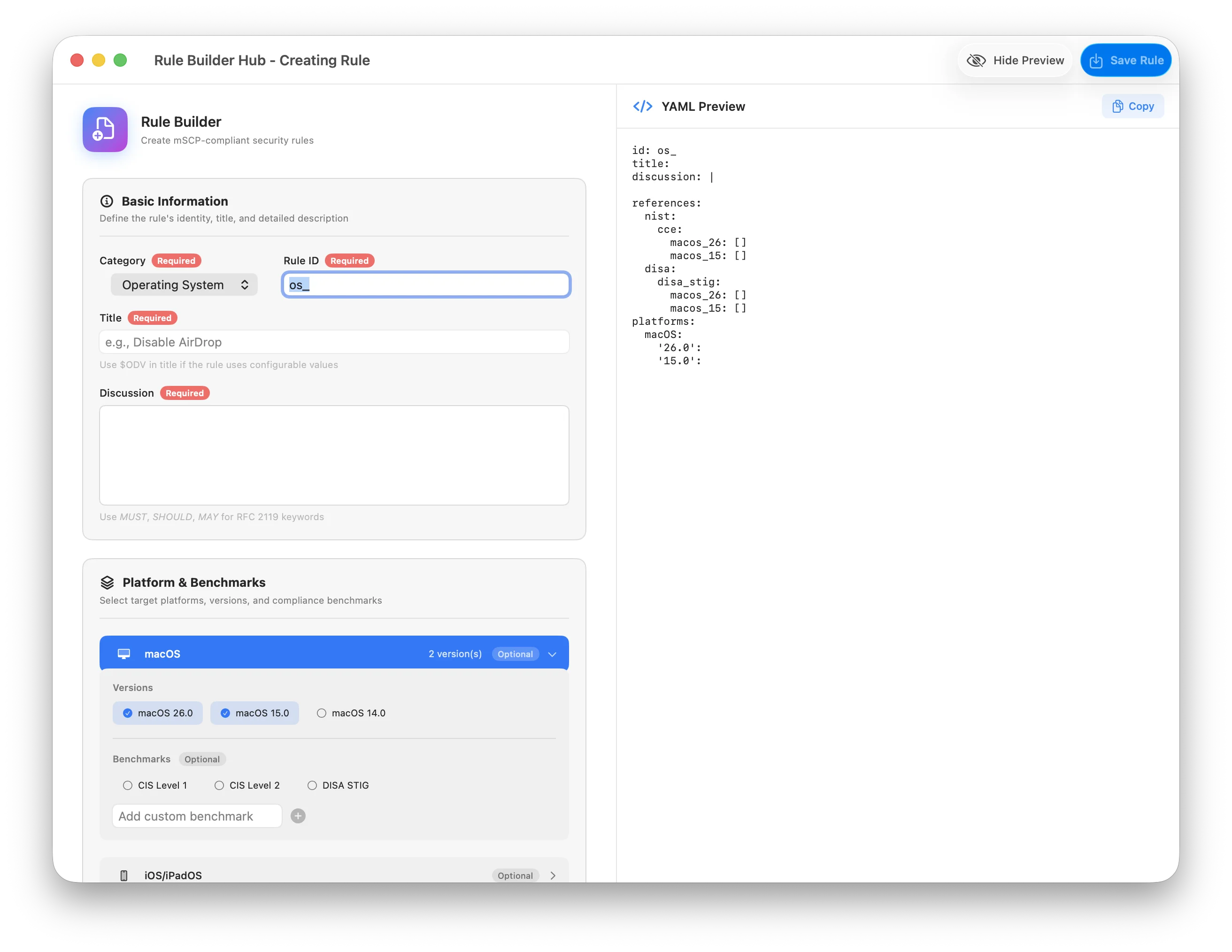
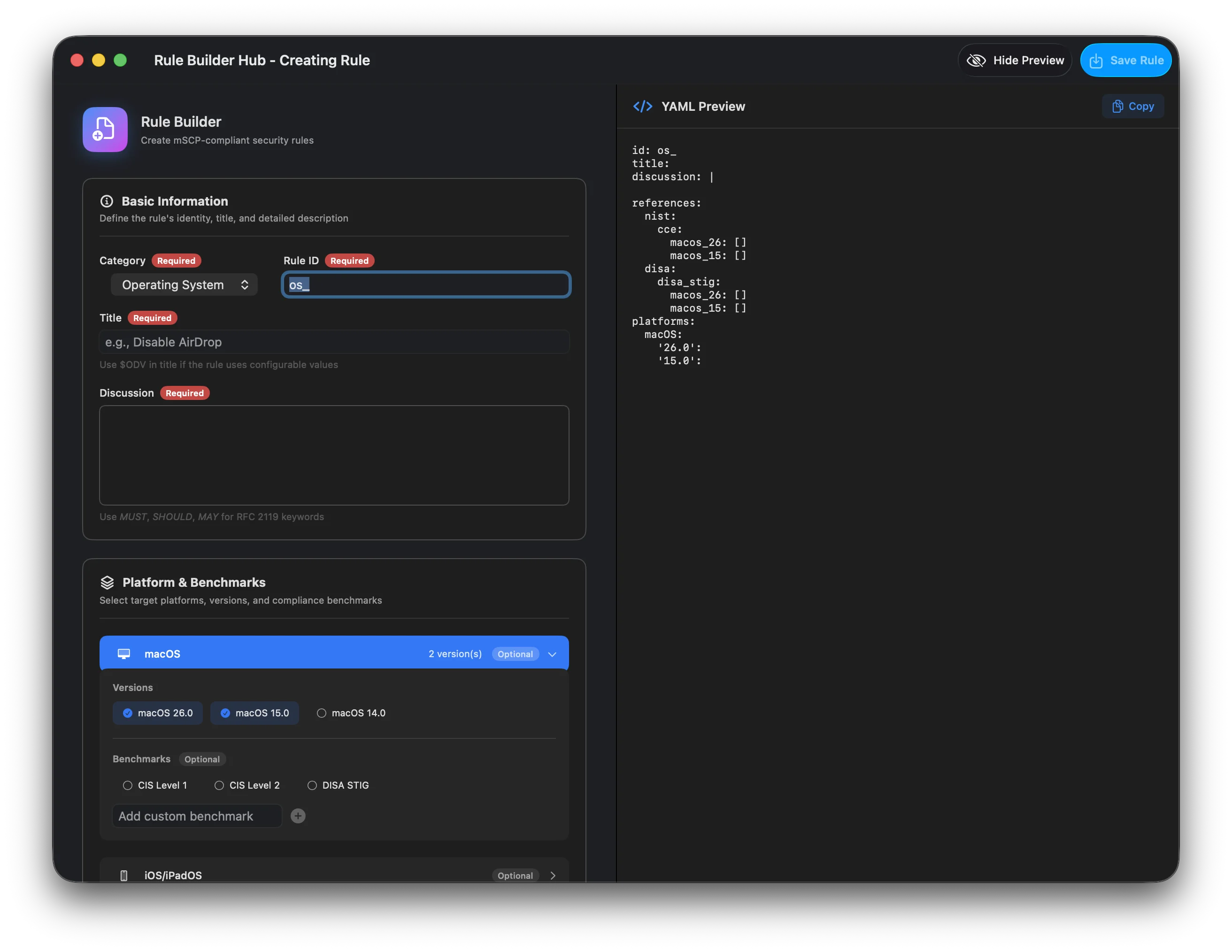
.yaml file to modify<id>.yaml as the default namecustom/rules/ and includes it in the baselineRule Builder Interface
Define the rule's identity with Category (sets the ID prefix), Rule ID, Title, and Discussion. Required fields are clearly marked.
Select target platforms (macOS, iOS/iPadOS, visionOS), the versions mSCP currently ships (macOS 26.0 and 15.0 are preselected), an Introduced Version per platform, and compliance benchmarks. macOS supports CIS Level 1, CIS Level 2, and DISA STIG. iOS supports CIS BYOD/Enterprise levels, iOS STIG, and INDIGO. visionOS supports the visionOS STIG. References are auto-generated based on your selections.
Tag your rule with compliance framework identifiers so it appears in the right baseline filters. Available tag groups include NIST 800-53r5 (Low/Moderate/High/Privacy), NIST 800-171, CIS Controls v8, CNSSI-1253, CMMC Level 1 and 2, NLMAPGOV, and special tags like manual, inherent, permanent, n_a, and supervised. You can also add a Custom Tag.
The Insert Template menu offers starter templates for common check patterns: defaults read, osascript, grep/awk, and pwpolicy. Selecting a template fills in a working example you can adapt for your rule.
Set a Recommended Value, a STIG Value, per-benchmark values, and validation min/max for the ODV. Add Custom References by category, key, and values. Pick a Payload Type for an MDM configuration profile, or a DDM declaration type, each with a Custom… option. The DDM section also handles configuration-file declarations with Service, Config File, Key, and Value.
Live preview shows the generated YAML as you fill in fields. Copy the YAML or verify the structure before saving. Toggle it with Hide Preview and Show Preview in the toolbar.
Where Custom Rules Live
Custom rules live in your project's MSCP_Project_Files/custom/rules/ folder:
YourProject/
├── MACE_Project.mace
└── MSCP_Project_Files/
    └── custom/
        └── rules/
            ├── os_my_rule.yaml
            └── my_other_rule.yaml
The Rule Builder saves wherever you choose in its Save panel. The editor's + Add button is what copies a rule into this folder. Keep the folder flat: MACE loads subfolders, but Delete, Show in Finder, and modification tracking expect custom/rules/<id>.yaml.
A custom file whose id matches an mSCP rule is treated as a modification of that rule, not a new one. Pick a unique ID for a genuinely new rule.
Custom rules are never overwritten when you update mSCP baseline rules.
Copy the custom/rules/ folder to share rules between projects or team members.
What Custom Rules Can Do
Custom rules have the same capabilities as baseline rules:
| 🔍 | Check commands | Verify compliance with shell scripts |
| 🔧 | Fix commands | Remediate non-compliant settings |
| 📱 | Configuration profiles | Deploy via MDM with mobileconfig |
| 📲 | DDM declarations | Use Declarative Device Management |
| 🔢 | ODV support | Define organization-specific values |
| 🔗 | References | Link to NIST, CIS, DISA standards |
Custom Rules in the UI
Custom rules are visually identified in the Compliance Editor:
| 🔧 | Custom Rule Icon | Wrench icon identifies rules you created |
| + | New Rule Status | Plus sign shows newly created rules |
| ✏️ | Editable | Edit custom rules through View Raw YAML File in the detail panel, or reopen the file in the Rule Builder. Delete Rule… removes them |
Compatibility
Custom rules use the standard mSCP YAML format. This means your custom rules are:
| ✅ | Compatible with mSCP | Can be used directly with the mSCP project |
| ✅ | Shareable | Share with other MACE or mSCP users |
| ✅ | Version controlled | Track changes with git |