Audit

Run compliance checks directly on your Mac and see results in real-time.
Instantly identify what's compliant, what's not, and what needs manual review.
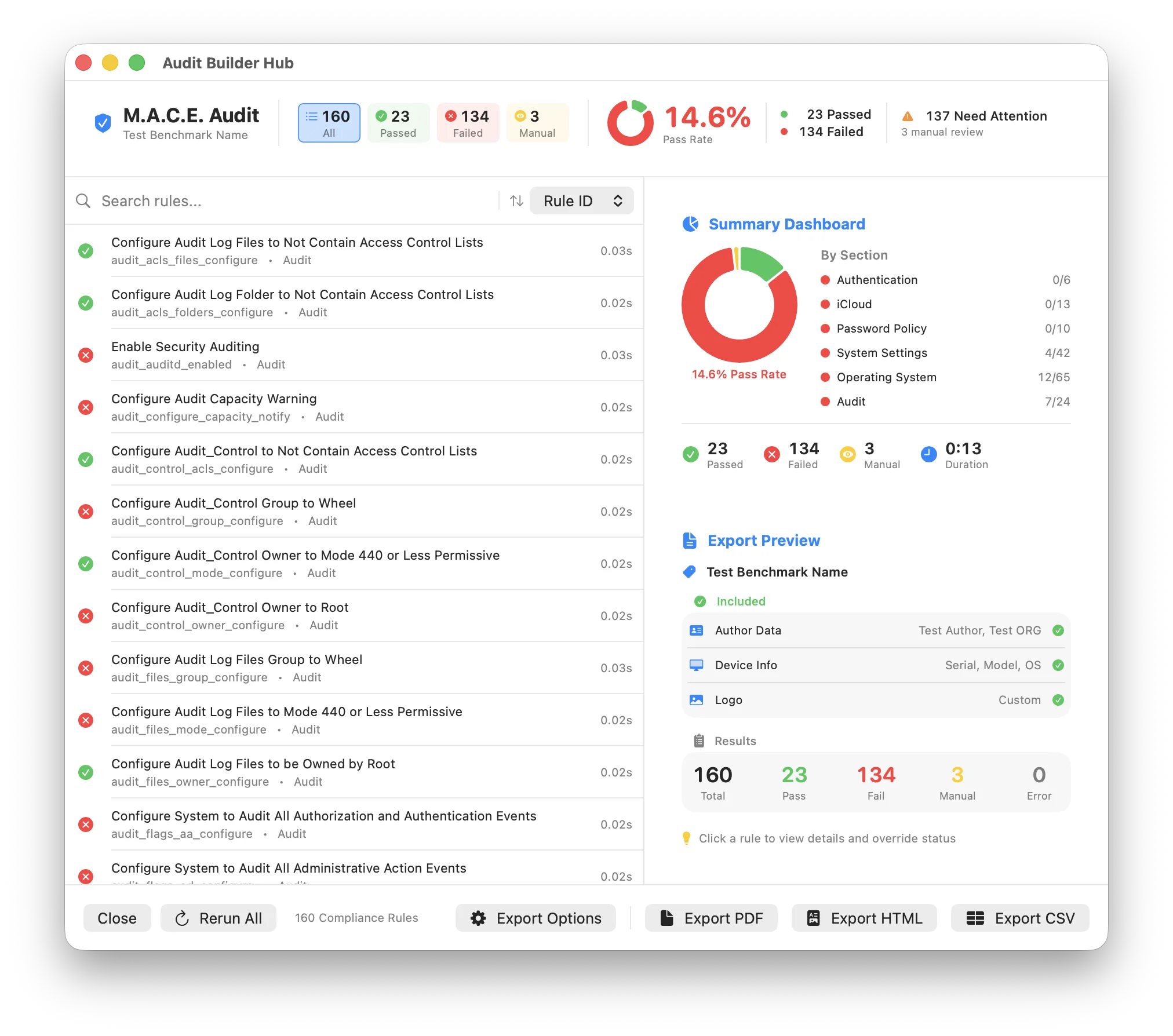
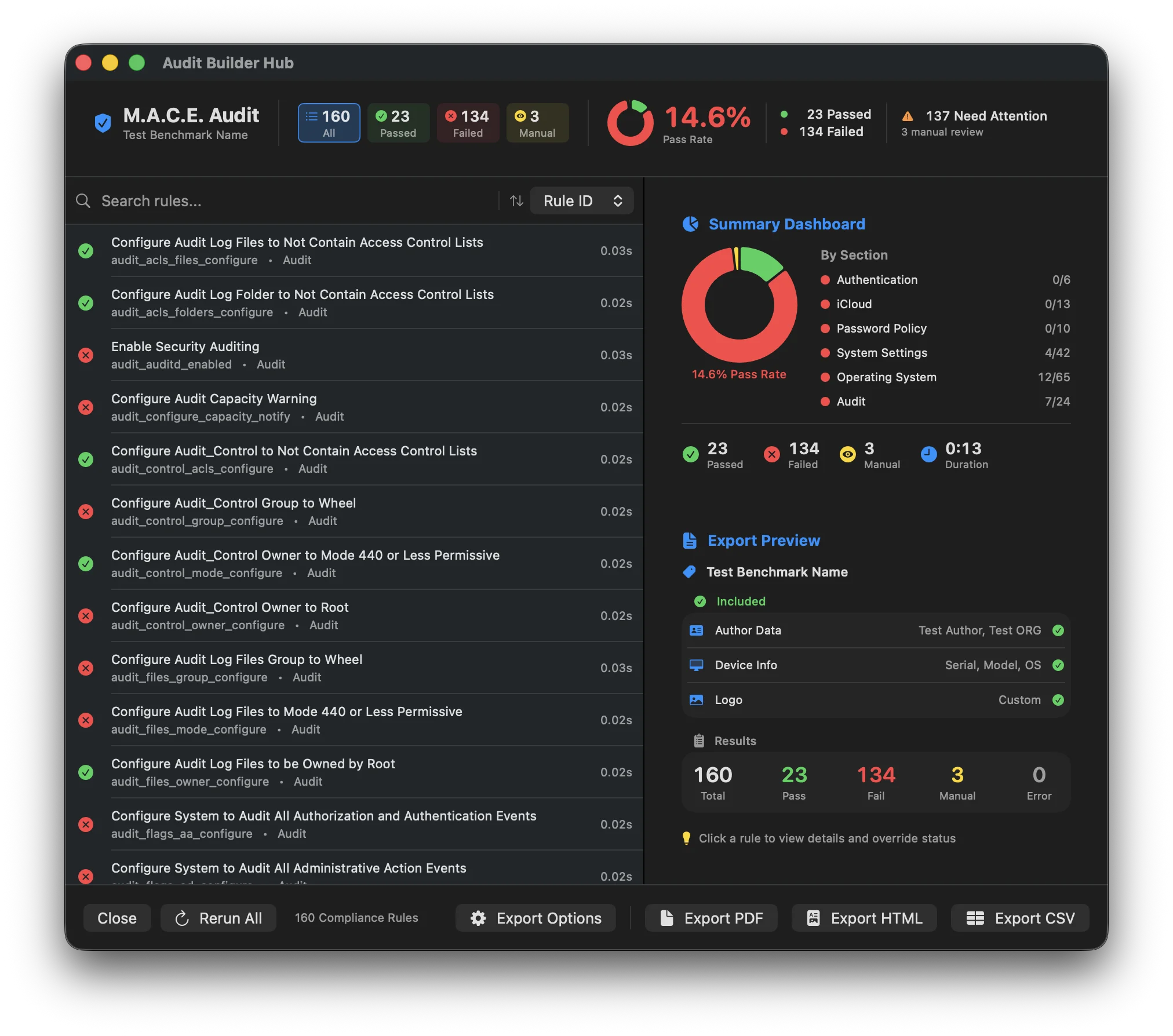
What Does Audit Do?
Every rule in your baseline has a check command, a small script that verifies whether a specific setting is in compliance. Audit takes all of those checks and runs them against your Mac in one pass, telling you rule by rule what's compliant, what isn't, and what needs your attention.
Audit vs Build: What's the Difference?
Build generates files (scripts, profiles, DDM) that you deploy to other Macs via MDM.
Audit runs those same checks right now, on this Mac, and shows you the results immediately. It's how you verify compliance on a specific machine.
Audit Status Types
Each rule receives one of these statuses after checking:
The setting matches the expected value. This Mac is compliant for this rule.
The setting does not match the expected value. This Mac needs remediation.
The check couldn't run or returned unexpected output. Investigate manually.
No automated check exists. You must verify this rule manually and set the status yourself.
This rule doesn't apply to this system. Excluded from the pass rate calculation.
The rule hasn't been checked yet. Waiting for the audit to reach this rule.
The check is currently executing. You'll see this briefly as MACE works through each rule.
:::info Exempt rules Rules marked exempt in the Compliance Editor are still checked. Choose what to honor with the Include Exemptions picker in the engine sheet: None, Local Exemptions already deployed on this Mac, Compliance Exemptions marked in this project, or both. Honored rules keep their Pass or Fail, gain an Exempt badge, and drop out of the pass rate. See Exempting Rules. :::
How Auditing Works
When you run an audit, MACE goes through each enabled rule and executes its check command:
Example: What Happens During a Check
For a rule like "Enable Firewall Logging":
/usr/libexec/ApplicationFirewall/socketfilterfw --getloggingmodeLog mode is onIf the output was "Log mode is off", the result would be Fail.
Privileged Helper
Some compliance checks need administrator access to read protected system settings. MACE includes a privileged helper tool that runs these checks securely.
Certain security settings can only be read with root privileges — for example, checking FileVault status or reading protected system preferences. The helper tool enables these checks without running the entire app as root.
On the first audit you run, macOS prompts you to approve the helper tool. This is a standard macOS security prompt for privileged tools. Once approved, the helper is available for all future audits and you won't be prompted again.
Safety First
The audit helper will not install or run without your permission. The first time, an Administrator Access Required sheet offers Keep Installed, so you're never prompted again, or This Session Only, which removes the helper when the audit window closes. Once the helper is installed, every later audit starts with a Review Before Running sheet that tells you how many checks are about to run. You can remove the helper any time under Settings → Advanced → Privileged Helpers.
Because the helper runs your rules' check commands with admin privileges, make sure you trust the baseline you're using. If you've added custom rules or are using an unfamiliar baseline, review them first.
Running an Audit
Tip: Load Last Audit
With Save Last Audit enabled in Settings (off by default), MACE saves the most recent run to the project's .mace file. On your next audit, the Review Before Running sheet offers Load Last Audit with its date and pass/fail counts, so you can restore those results instantly instead of re-running every check.
Audit Engines
Choosing an engine is the first decision when you start an audit. The Select Engine sheet shows two cards:

mSCP Audit
Uses the original mSCP Python scripts with default options. Customize by editing files directly.
- Results in
/Library/Preferencesand/Library/Logs - Custom script flags and a command preview under Advanced
- An Audit Report window with Passed, Failed, Exempt, and N/A counts

M.A.C.E. Audit
Native Swift engine with more customization and output options built into the app. Preselected.
- Real-time results with Watch Live
- Export to PDF, HTML, spreadsheets, JSON, Markdown, and STIG checklists
- Override results and add comments
- Supports all customizations
Audit Options
After selecting the M.A.C.E. engine, its options appear below the engine cards:
Audit Mode
Runs each rule's check command against the live system and verifies the output against the expected value. Requires admin access via the privileged helper.
Compares locally deployed mobileconfig profiles against what each rule requires. Only works with rules that have mobileconfig_info defined — script-based rules are excluded. Results can be viewed By Rule or By Profile with Setting, Expected, Current, and Status columns, and re-inspected on demand. Only Include Disabled Rules applies in this mode.
Run Options
Shows results updating in real-time as each rule is checked. Pass/fail results appear immediately as the audit progresses.
When to disable: On slower Macs, live updates can slow down the audit. Turn it off to finish faster, then view all results at once.
Also audits rules you've excluded from the baseline. Useful for seeing where your Mac stands on the full rule set, even settings you've chosen not to enforce.
Stays visible but disabled when the baseline has no excluded rules.
None ignores exemptions so every rule reports its plain Pass or Fail. Local Exemptions honors what's already deployed on this Mac in the org.<baseline>.audit domain. Compliance Exemptions honors the rules marked exempt in this project. Local + Compliance honors both, with the deployed one winning on conflicts. Honored rules keep their result and get an Exempt badge.
Understanding the Results
After the audit completes, you'll see:
Summary Statistics
The percentage of rules that passed. N/A, Manual Review, and exempt rules are left out of the calculation. Errors still count against it. Green at 80% or more, orange at 50% or more, red below.
Badges showing how many rules are in each status: All, Passed, Failed, Manual, N/A, and Errors when there are any. A Need Attention counter adds up unexempt failures, manual reviews, and errors. With nothing selected, the detail area shows a dashboard with a pass-rate donut and a By Section breakdown, worst first.
Results List
Each row shows one rule with its:
| 🏷️ | Status | Color-coded icon, e.g. Pass Fail |
| 📝 | Title or Rule ID | Whichever you pick in the Title / ID switch is the main line; the other is the caption |
| 🆔 | STIG ID, CIS ID, Section | Optional extras from the view menu |
| 🏷️ | Pills | N/A, Overridden, Modified, Disabled, Exempt, Review, or Comment when they apply |
| ⏱️ | Execution Time | How long the check took, on the right |
Expected and actual output, the discussion for manual rules, comments, and the exemption reason live in the detail panel on the right.
What You Can Do With Results
Click a status badge to filter, use the Filter menu for payload types, Has Script, Has ODV, Exempt, Modified, Disabled, or Flagged rules, and search by Rule ID, title, STIG or CIS ID, comment, exemption reason, or status.
Set a rule to Pass, Fail, Manual Review, or N/A, or override its output values. Overrides are tracked and can be shown in exports.
Add notes to any rule explaining exceptions, compensating controls, or remediation plans.
Click Rerun in the detail header to re-check one rule, or Rerun All in the footer to repeat the whole audit. Rerun All keeps comments but clears overrides.
From the footer bar, open a live Export Preview, use Quick Export, or build a DISA STIG Checklist. Nine formats, from PDF and HTML to spreadsheets and checklists.
Manual Review Rules
Some rules don't have automated checks. These are marked Manual Review and require you to:
Why Some Rules Need Manual Review
Not every security setting can be checked automatically. Some require visual inspection (like checking a physical cable), reviewing policies, or judgment calls that can't be automated.
System Information Collection
MACE can collect device information to include in reports:
| 💻 | Serial Number | Your Mac's unique identifier |
| 📱 | Model Name | e.g., "MacBook Pro" or "Mac mini" |
| 🖥️ | Hostname | Your computer's network name |
| 🍎 | macOS Version | e.g., 15.0.1 |
| 🌐 | IP Address and MAC Address | Off by default in exports |
This information is optional and can be included in exported reports to identify which Mac was audited.
What's Next?
| 📊 | Audit Results | Deep dive into working with results, overrides, and comments |
| 📄 | Exporting Reports | Live preview and export in nine formats, from PDF to DISA STIG checklists |