Exporting Reports

Export audit results in nine formats — from PDF and HTML to spreadsheets, Markdown, and DISA STIG checklists.
Generate professional reports for auditors, documentation, and compliance tracking.
Export Formats
MACE can export audit results in nine formats:
Professional report format. Ideal for sharing with auditors, management, or for official documentation. Includes charts and formatted tables.
HTML
Interactive web report. Can be opened in any browser. Includes responsive design and expandable details. Great for internal review.
CSV
Spreadsheet format. Import into Excel, Google Sheets, or other tools. Useful for data analysis, filtering, and custom reporting.
XLSX
Excel spreadsheet with formatted table, auto-filters, and frozen header row. Ideal for compliance teams who need to sort, filter, and analyze results in a spreadsheet.
JSON
Structured data format containing audit results and summary statistics. Ideal for automation, custom dashboards, or feeding results into other tools and scripts.
Markdown
Plain-text report with Markdown formatting. Drop it into wikis, GitHub, or ticketing systems that render Markdown.
AsciiDoc
Plain-text report in AsciiDoc format. Fits documentation pipelines built on Asciidoctor or Antora.
STIG CKL
DISA STIG Checklist format (XML). Required for DoD compliance. Updates existing CKL templates with your audit results. Only available for STIG frameworks.
STIG CKLB
DISA STIG Viewer 3.x checklist format (JSON). The modern replacement for the XML-based CKL. Can update an existing CKLB template or generate one from an XCCDF benchmark. Only available for STIG frameworks.
Which Format Should I Use?
| 📄 | Share with auditors or management | |
| 🌐 | HTML | Review results in a browser |
| 📊 | CSV | Analyze data in Excel or Google Sheets |
| 📋 | XLSX | Pre-formatted Excel file with filters and frozen headers |
| 🧩 | JSON | Feed results into automation, dashboards, or other tools |
| 📝 | Markdown | Paste into wikis, GitHub, or Markdown-aware tools |
| 📃 | AsciiDoc | Use in Asciidoctor/Antora documentation pipelines |
| 🛡️ | STIG CKL | Submit for DoD compliance (STIG Viewer 2.x) — STIG frameworks only |
| 🛡️ | STIG CKLB | Submit for DoD compliance (STIG Viewer 3.x) — STIG frameworks only |
Live Preview
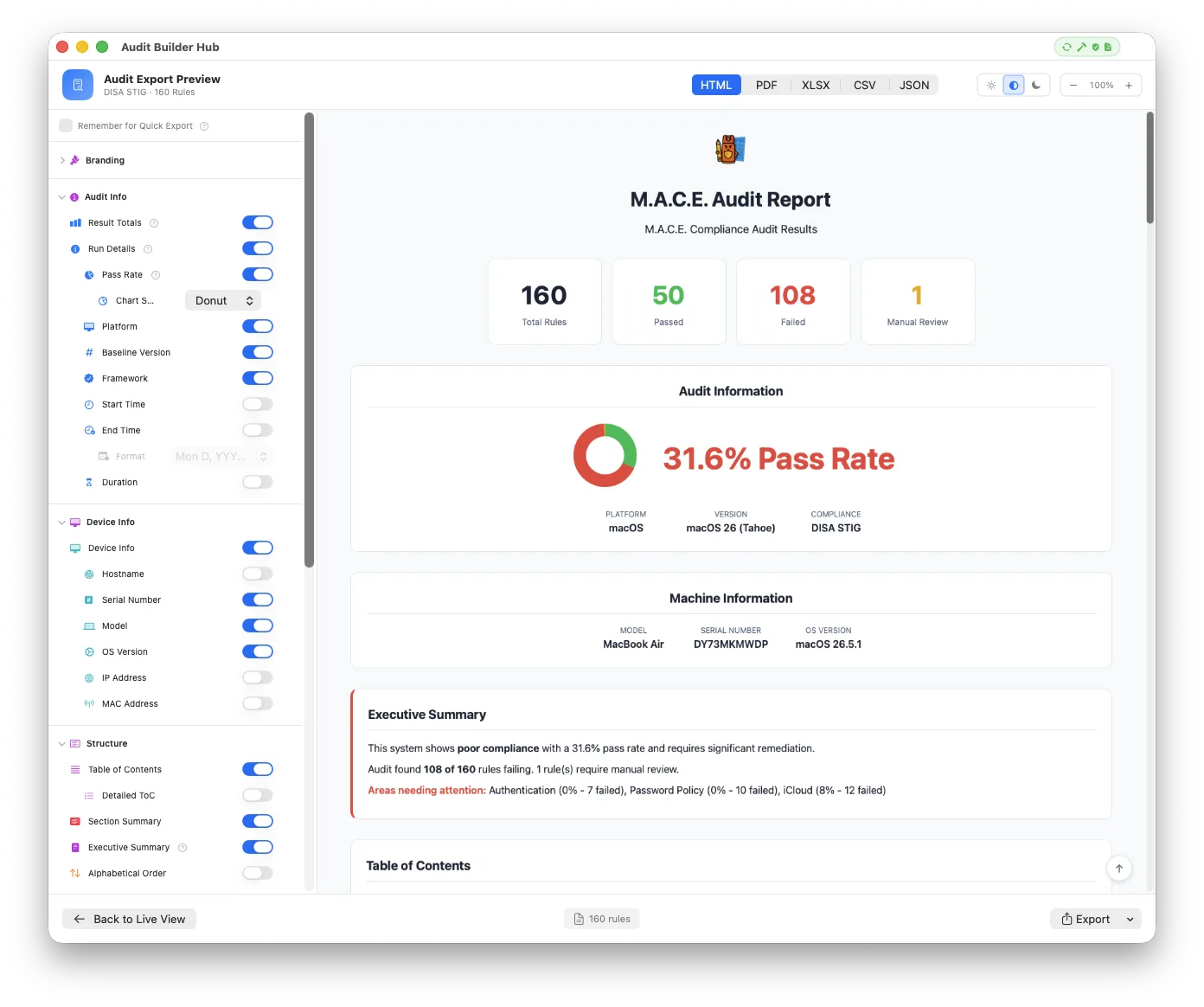
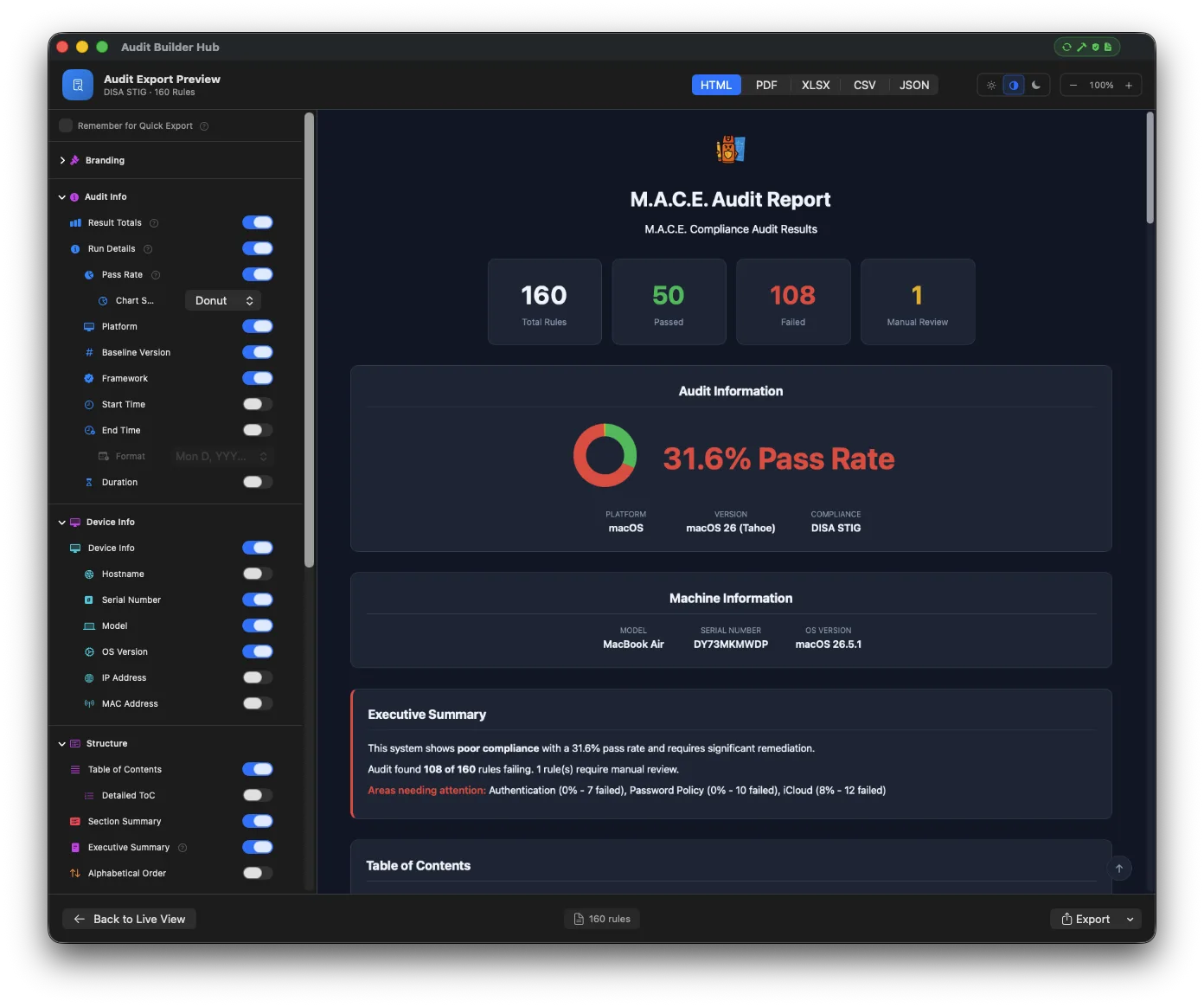
When your audit finishes, click Export Preview in the footer bar to open the live export preview. The preview renders your report exactly as it will export, and updates in real time as you change options — what you see is what you get.
Switch Formats Live
Toggle between HTML, PDF, Markdown, AsciiDoc, XLSX, CSV, and JSON with the format tabs at the top — the preview re-renders instantly for each.
Theme & Zoom
Preview in light, auto, or dark mode and adjust the zoom level to check exactly how the report will look before exporting.
Configure Everything
The sidebar groups all options into Branding, Audit Info, Device Info, Structure, Rule Content, Check Output, Listing & Status, and Format Options. Toggle content on or off and watch the preview update live. Remember for Quick Export at the top saves the set for one-click exports, and Reset to Defaults puts everything back.
Remember for Quick Export
Enable Remember for Quick Export to save your current settings — a Quick Export menu then appears in the footer bar with every format plus Export All Formats, no preview needed.
How to Export
The flow is the same for every report format:
The live preview covers all the report formats above. To produce a STIG CKL or CKLB checklist, use the STIG Checklist button in the footer bar instead — these formats map your results onto a DISA checklist rather than a formatted report. See STIG Checklist Export below.
Export Options
The export preview sidebar holds everything you can configure — toggle options on or off and the preview updates live. The exact set of options evolves with each release, but they fall into these groups:
Document Title and Subtitle with editable text, Date in Subtitle with a Date Source (audit run or today) and Date Format, Author Info, the Logo (None, MACE, or Custom), and MACE Branding. Useful for white-labeled or sanitized reports.
Result Totals, Run Details, the Pass Rate with a Chart Style (Donut, Pie, Bar, or Gauge), Platform, Baseline Version, Framework, Format, and the Start Time, End Time, and Duration, which are off by default.
Identify the audited Mac. On by default with Serial Number, Model, and OS Version; Hostname, IP Address, and MAC Address are off until you enable them.
Table of Contents, Detailed ToC, Section Summary, Executive Summary, and Alphabetical Order. In PDF the ToC gets bookmarks and page numbers.
Which identifier leads each row (Title or Rule ID), plus Check Commands, Fix Commands, Config Profiles, DDM Info, CIS ID, STIG ID, Section, and Rule Tags.
Outputs, Expected Result, Actual Result, and Execution Time.
Which statuses to list (Passed, Failed, Exempt, Manual Review, Exclude Manual Rules, Discussions), the Review and Comments switches, Show Override Indicator, Show Modified Indicator, and the Exemptions controls: a Source picker (Compliance counts only exemptions marked in the project, As Scanned counts everything the scan honored), Exclude Exempt Rules, Show Exempt Indicator, Exemption Reasons, and Exempt in Own Section.
PDF: Page Footer, Signature, and a Light, Dark, or Both color scheme. HTML: Auto, Light, or Dark. XLSX: References columns.
Some Options Are Contextual
Some options only make sense for certain formats: Format Options are split by PDF, HTML, and XLSX, and PDF is always paginated. The CIS ID and STIG ID switches are always offered but only have something to show on those frameworks. The exemption controls read "Exemptions (None)" when the audit has no exempt results.
PDF Export
The PDF export creates a professional compliance report suitable for auditors and official documentation.
| 🎨 | Header | Logo, report title, author, organization, date |
| 📊 | Summary Statistics | Total rules, pass/fail counts, pass rate percentage |
| 🍩 | Pass Rate Chart | Donut by default, or Pie, Bar, or Gauge |
| 💻 | Device Information | Serial number, model, OS version (on by default) |
| 📋 | Executive Summary | High-level findings overview (optional) |
| 📈 | Section Summary | Pass rates by category (optional) |
| 🗂️ | Results Table | All rules with status, expected/actual values, comments |
| ✍️ | Signature Section | Sign-off lines for auditors (optional) |
| 🦶 | Footer | Generation timestamp and page numbers. Bookmarks give a clickable outline in Preview |
| 🌗 | Color Scheme | Light, Dark, or Both, which writes _Light.pdf and _Dark.pdf |
HTML Export
The HTML export creates an interactive web report that can be opened in any browser.
| 📱 | Responsive Design | Works on desktop, tablet, and mobile |
| 🌓 | Dark Mode Support | Auto follows the reader's system setting; Light or Dark can be forced |
| 🔍 | Sticky Search | Filter rules by ID, title, or section with a live "X of Y rules" count |
| 📑 | Table of Contents | Collapsible sections and a back-to-top button |
| 🔽 | Expandable Details | Click rows to see more information |
| 🚦 | Status Color Coding | Visual pass/fail indicators |
| 🧭 | Section Navigation | Jump to specific sections |
| 🍩 | Pass Rate Chart | SVG donut, pie, bar, or gauge |
Viewing the Report
Open the exported .html file in any web browser (Safari, Chrome, Firefox, etc.). The report is self-contained with all styles embedded — no internet connection needed.
CSV Export
The CSV export creates a spreadsheet-compatible file for data analysis:
| 📊 | Summary Info | Pass/fail counts at the top of the file |
| 🏷️ | Column Headers | Based on your export options |
| 🗂️ | One Row Per Rule | All the details for every checked rule |
Using the CSV
Import into Excel (File → Open), Google Sheets (File → Import), or Numbers (File → Open) to create custom pivot tables, apply your own filtering and sorting, generate charts, or combine audit data with other sources.
XLSX Export
The XLSX export creates a formatted Excel spreadsheet ready to open in Microsoft Excel or Numbers:
| 🎨 | Formatted Table | Styled header row, ready to read on open |
| 🔽 | Auto-Filters | Every column can be sorted and filtered instantly |
| 🧊 | Frozen Panes | The header row and the first two columns stay visible as you scroll |
| 🗂️ | One Row Per Rule | Status, rule ID, title, section, expected/actual output, comments, Exempt and Exemption Reason, and framework References columns |
| 📑 | Multiple Sheets | Audit Results and Summary, plus Exempt Rules and Flagged for Review sheets when those options are on |
| 🚦 | Status Color Coding | Visually distinguishes pass, fail, and other statuses |
XLSX vs CSV
XLSX is more structured than CSV — filters, column widths, and formatting are already set up when you open it. Choose CSV when you want raw data for pipelines; choose XLSX when a person will read it.
JSON Export
The JSON export creates a structured data file containing your audit results and summary statistics — ideal for automation, custom dashboards, or feeding results into other tools:
| 📊 | Summary | totalRules, passed, failed, notApplicable, exempt, notReviewed, and passRate |
| 🧾 | Audit Metadata | Platform, baseline version, framework, device info |
| 🗂️ | One Entry Per Rule | Status, expected/actual output, comments, and exempt with exemptReason |
Using the JSON
Parse the file in any language or pipeline to build dashboards, track compliance trends over time, or integrate results with ticketing and SIEM tools.
Markdown & AsciiDoc Export
Both create plain-text reports for documentation workflows:
| 📝 | Markdown | Renders anywhere Markdown does — wikis, GitHub, ticketing systems, and note apps |
| 📃 | AsciiDoc | Slots into Asciidoctor and Antora documentation pipelines |
| 🗂️ | Same Content | Summary statistics and the full results table, following your export options |
Why Plain Text?
Text-based reports diff cleanly in version control — commit one per audit and your compliance history becomes reviewable over time.
STIG Checklist Export (CKL & CKLB)
For DoD security assessments, MACE can export your results as a DISA STIG checklist in two formats. Both are produced from the STIG Checklist button in the footer bar (rather than the live Export Preview):
The XML checklist format. Fill in an existing CKL, or generate a new one from a DISA STIG ZIP or XCCDF XML.
The modern JSON checklist format. Fill in an existing CKLB, or generate a new one from a DISA STIG ZIP or XCCDF XML with authoritative DISA metadata.
Both formats are the standard for DISA STIG checklists and contain device identification, vulnerability assessments, finding details and status, and comments.
How Checklist Export Works
An external DISA source file is always required. The STIG Checklist Export sheet offers two cards: Fill-in Existing Checklist (Select CKL File or Select CKLB File) and Generate from DISA STIG Source (Generate CKL or Generate CKLB from a STIG ZIP or XCCDF XML). Either way, MACE merges your results in:
Status Mapping
MACE audit statuses map to checklist statuses:
| Pass | NotAFinding / not_a_finding | The control is in place |
| Fail | Open / open | The control is not in place — an open finding |
| N/A | Not_Applicable / not_applicable | The control doesn't apply to this system |
| Error | Not_Reviewed / not_reviewed | The check couldn't run — needs review |
| Manual Review | Not_Reviewed / not_reviewed | Human verification still required |
| Pending | Not_Reviewed / not_reviewed | The rule wasn't checked |
(CKL uses the capitalized XML statuses; CKLB uses the lowercase JSON statuses.)
How to Export a Checklist
What Gets Updated
For each matching STIG ID:
| 🚦 | STATUS | Updated to match your audit result |
| 🔍 | FINDING_DETAILS | "Command Input" and "Command Output", plus a note when the rule was modified and that option is on |
| 💬 | COMMENTS | Your comment, plus "Exemption: reason" for exempt rules |
| 🖥️ | HOST_NAME | Set from device information when a hostname is available |
Requirements
The audit must use a STIG baseline, and STIG IDs must match between your audit and the template. A DISA source file is always required: an existing CKL or CKLB to fill in, or a STIG ZIP or XCCDF XML to generate from. Nothing is generated from scratch.
Custom Logo
To use your organization's logo in reports, open the Branding section of the export preview:
Your Logo Travels With the Project
MACE saves your uploaded logo as logo.png in the project folder, so it's reused across exports. If a logo.png already exists in the project folder, MACE detects it automatically and offers it as the Custom logo. Use the trash button next to Upload Logo to delete it from the project folder (Logo falls back to MACE).
Logo recommendations:
| 🖼️ | Format | PNG with transparency |
| 📏 | Size | 200–400 pixels wide |
| ↔️ | Aspect Ratio | Horizontal works best |
Best Practices
Create a "before" snapshot of your compliance state. This documents your starting point for comparison after fixes.
When sharing with auditors, turn on "Show Override Indicator" under Listing & Status so they can see which results were manually changed. It's off by default.
Keep "Section Summary" on (the default) when creating reports for management. It highlights problem areas at a glance. Add the Executive Summary for a one-page view.
Export to CSV if you need to do custom analysis, create charts, or combine audit data with other systems.
If you're submitting to a DoD security assessment, the CKL format is required. Keep your template CKL up to date.