Audit Results

View, filter, edit, and understand your compliance audit results.
Every rule's status, what was checked, and what was found.
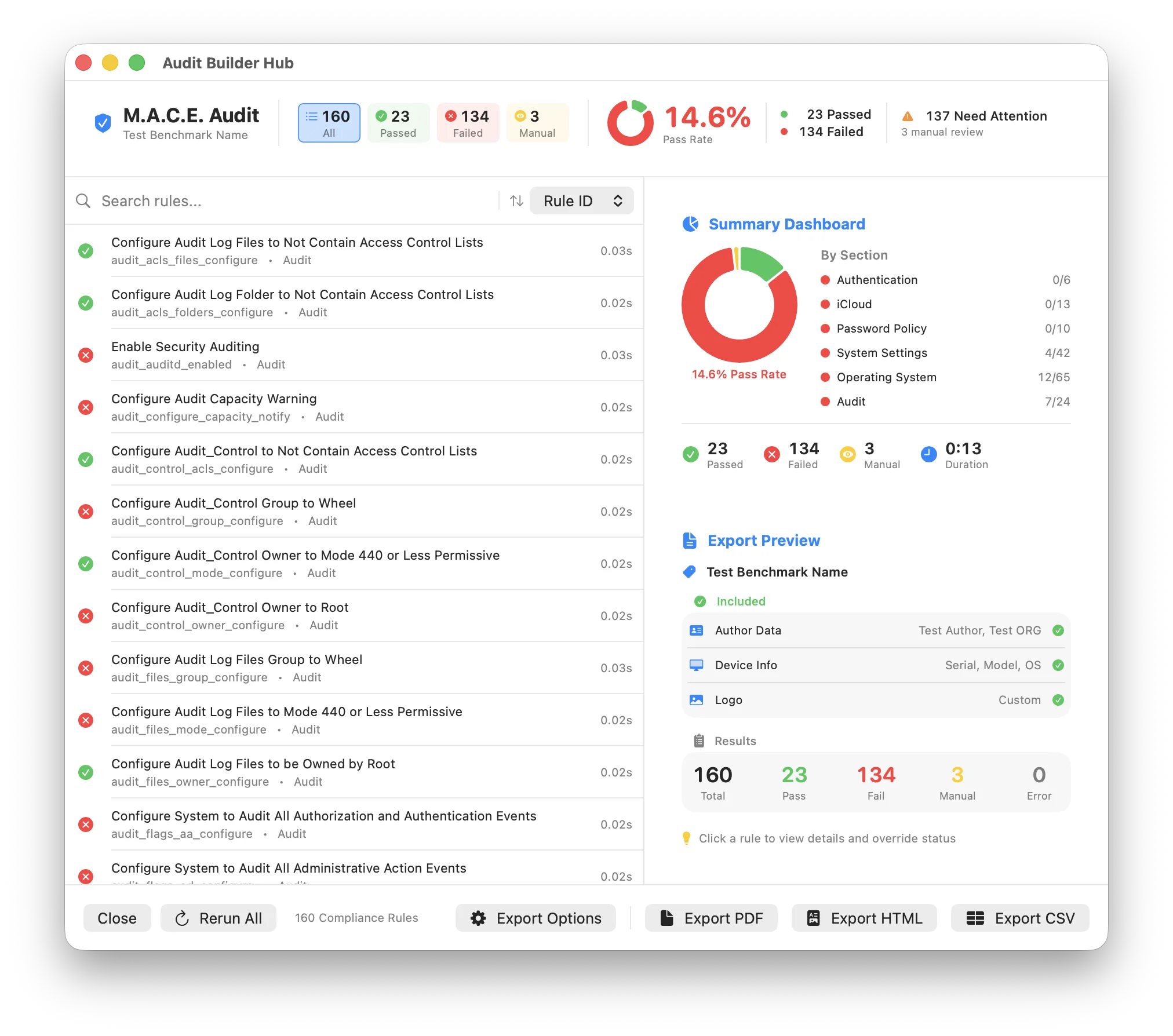
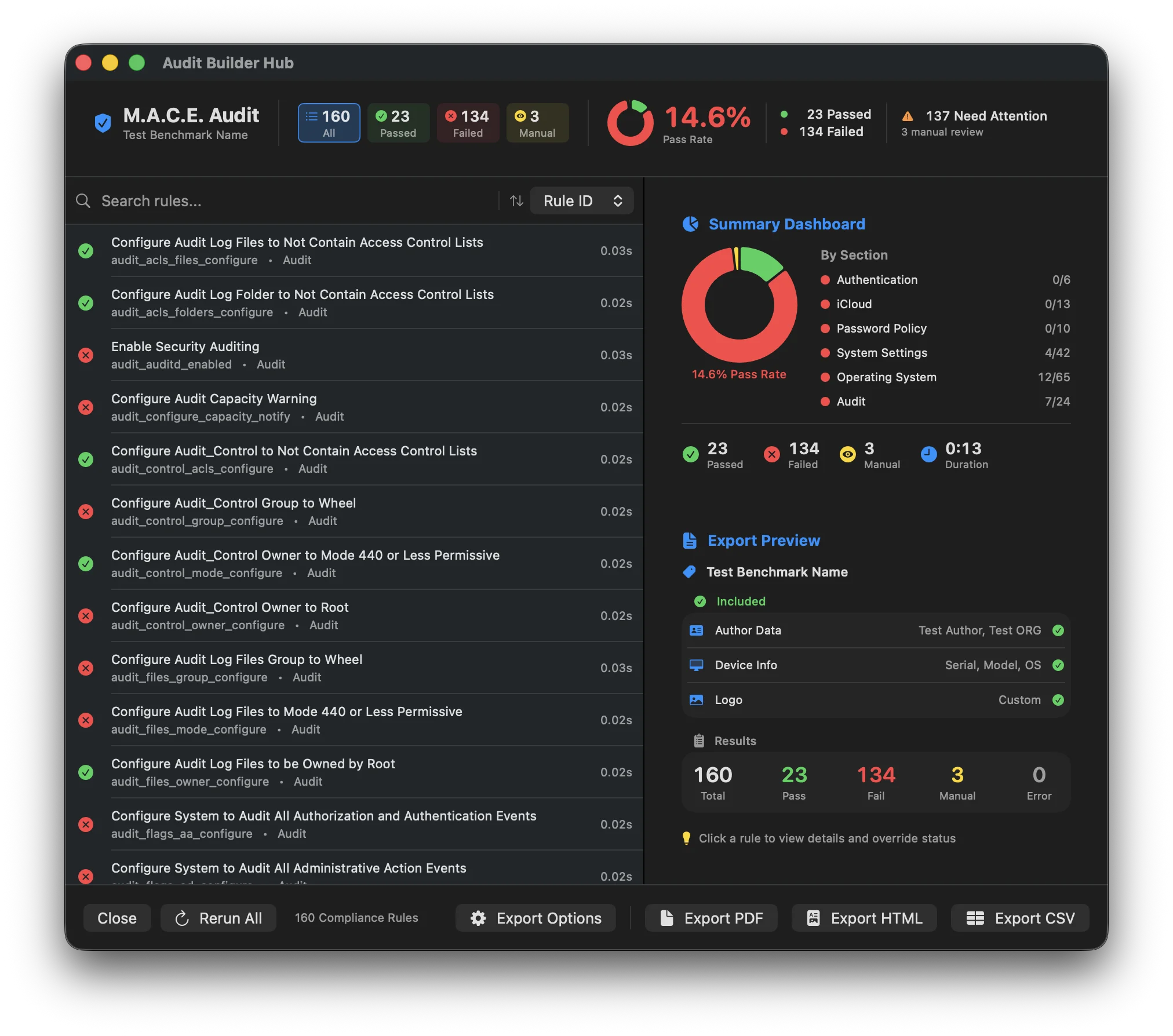
Results Overview
After an audit completes, you see a comprehensive view of your Mac's compliance status. The results screen has three main areas:
Pass rate, status counts, and filter controls at the top of the window.
Every rule with its status and details, searchable and sortable.
Deep dive into the selected rule — scripts, discussion, outputs, and editing controls.
Summary Statistics
At the top of the results view, you'll see:
Your main compliance score. Shows what percentage of rules passed out of all the rules that could be automatically checked.
N/A, Manual Review, and exempt rules don't count toward this number. Errors do count against it.
Color-coded counts for each status type. Click a badge to filter the list to just that status. Errors only appears when there are some, and a Need Attention counter adds up unexempt failures, manual reviews, and errors.
Results List
The main list shows every rule that was checked, with the details of the selected rule in the panel on the right. When nothing is selected, that panel shows a Summary Dashboard with the pass-rate donut, quick stats, and a By Section breakdown.
What Each Row Shows
| 🚦 | Status | Color-coded icon, e.g. Pass Fail |
| 📝 | Title or Rule ID | The Title / ID switch above the list picks which is the main line; the other becomes the caption |
| 🏷️ | Pills | N/A, Overridden, Modified, Disabled, Exempt, Review, or Comment, when they apply |
| ⏱️ | Execution Time | How long the check took, on the right. Helps identify slow-running checks |
Optional Row Details
The view menu next to the Title / ID switch adds:
| 🛡️ | Show STIG ID | STIG reference like APPL-15-005001 (STIG frameworks only) |
| 🔖 | Show CIS ID | CIS Benchmark reference number (CIS frameworks only) |
| 📁 | Show Section | The category this rule belongs to |
Filtering and Searching
Click the status badges to filter the table:
- Click Failed to see only failed rules
- Click Passed to see only passing rules
- Click Manual Review to see rules needing attention
- Choose Exempt Rules to see rules honored as exempt, with their reasons
- Click All to reset and show everything
- Use the Filter menu for payload types, Has Mobileconfig, Has DDM, Has Script, Has ODV, Modified Rules, Disabled Rules, and Flagged Rules
Use the search box to find rules by:
- Rule ID: Search "firewall" to find firewall-related rules
- Title: Search by the rule name
- STIG ID or CIS ID: Search by framework reference
- Comment, exemption reason, or status: Search the text you've added or a status word like "fail"
Use the sort menu and the ascending/descending arrow next to it:
- Rule ID: Alphabetical by identifier
- STIG ID: By STIG reference (STIG compliance only)
- Title: Alphabetical by name
- Status: Fail, Error, Manual Review, Pass, then N/A
Rule Details Panel
Click any rule to see its full details in the right panel:
The command that was run to check this setting. Shows exactly what MACE tested, along with the STIG ID and CIS ID when the framework has them.
The Expected and Machine Output fields, with a line saying whether they match. Click either to override it.
Shown for Manual Review rules: why the rule exists and what to verify by hand. Click to add your own notes about what you checked.
Extra blocks appear when they apply: Exemption Reason with its source, Review Comment from the editor, Disabled Justification, and Modified Rule listing each customized field with its baseline and custom values.
The copy icon next to Rule ID copies it to your clipboard. Useful for referencing specific rules in documentation or reports.
Editing Results
Overriding Status
Sometimes you need to manually change a rule's status. For example:
| ✅ | False failure | A check reports "Fail" but you've verified it's actually compliant via a different method |
| ❌ | False pass | A check reports "Pass" but you know there's an issue |
| 👁️ | Manual review done | You've completed a manual review and need to set the status |
Overrides Are Tracked
When you override a result, MACE remembers the original value. The row gets an Overridden pill, the original value stays visible under the field, and exports can show a Modified indicator so auditors know which results were manually changed.
Editing Expected and Actual Output
You can also edit the Expected and Machine Output fields under Output Values — click the field, modify the text, and the change is tracked as an override.
This is useful when:
| 🧹 | Messy output | The check returned extra whitespace or formatting |
| 👀 | Manual observation | You need to document what you manually observed |
| 🎯 | Environment-specific value | You want to correct an expected value for your environment |
Adding Comments
Comments let you document why a rule is in a particular state. Select a rule, find the Comment field in the details panel, and enter your notes.
| 🚫 | Exceptions | Explain why a failure is acceptable on this Mac. For a rule that should never be enforced, mark it exempt in the Compliance Editor instead so the reason follows the rule everywhere |
| 🛡️ | Compensating controls | Document alternative protections that cover the risk |
| 📅 | Remediation plans | Note when a fix is scheduled or planned |
| ✍️ | Verification records | Record who verified a manual review item and how |
Comments Travel With Your Reports
Comments appear in every exported format — from PDF reports to STIG checklists — so your documentation stays with the results auditors see. They're stored in the project's .mace file, and with Preserve Audit Comments on in Settings they survive the next audit.
Re-running Rules
After making changes to your Mac, re-check one rule without running the entire audit: select the rule, then click Rerun in the detail header. The rule is checked again and the result updates.
Click Rerun All in the footer bar, available once the audit has finished, to check every rule fresh. Comments are preserved, but status and output overrides are reset.
Understanding Pass/Fail
A rule passes when the Actual Output matches the Expected Output:
| Pass | Expected: 1 · Actual: 1 | The check ran and the value matches — firewall is enabled as required |
| Fail | Expected: 1 · Actual: 0 | The check ran successfully but the value was wrong — firewall is disabled |
| Error | Check couldn't run | The check itself crashed, timed out, or returned unexpected output — investigate why |
Error vs Fail
Fail means the check ran and gave a definitive wrong answer. Error means the check never completed, so the true state is unknown — review errors before addressing failures.
Working with Manual Review Items
Rules marked Manual Review have no automated check. You must:
Identifying Problem Areas
Failed Rules
Failed rules are your immediate priority. For each failed rule:
Section Breakdown
Tip: Compliance by Category
Click away from any rule to see the By Section breakdown on the dashboard, worst sections first. Section Summary, on by default in exports, puts the same breakdown in reports. This helps identify which areas of your baseline have the most failures — for example, most misses concentrated in "Authentication" or "System Settings".
Best Practices
Add comments to any rule with exceptions, compensating controls, or special circumstances. This helps auditors understand your decisions.
Error results mean something went wrong with the check itself. Investigate these before addressing failures.
Don't leave rules in "Manual Review" status. Verify each one and set a definitive status with documentation.
Export results before remediating so you have a record of the "before" state for comparison.
What's Next?
| 📄 | Exporting Reports | Live preview and export in nine formats, from PDF to DISA STIG checklists |